Admin guide
Running a session with the admin link. Written for a tablet, same on a phone.
Applies whether you are logging your own training or recording someone else’s — “you” means whoever holds the admin link.
The screen
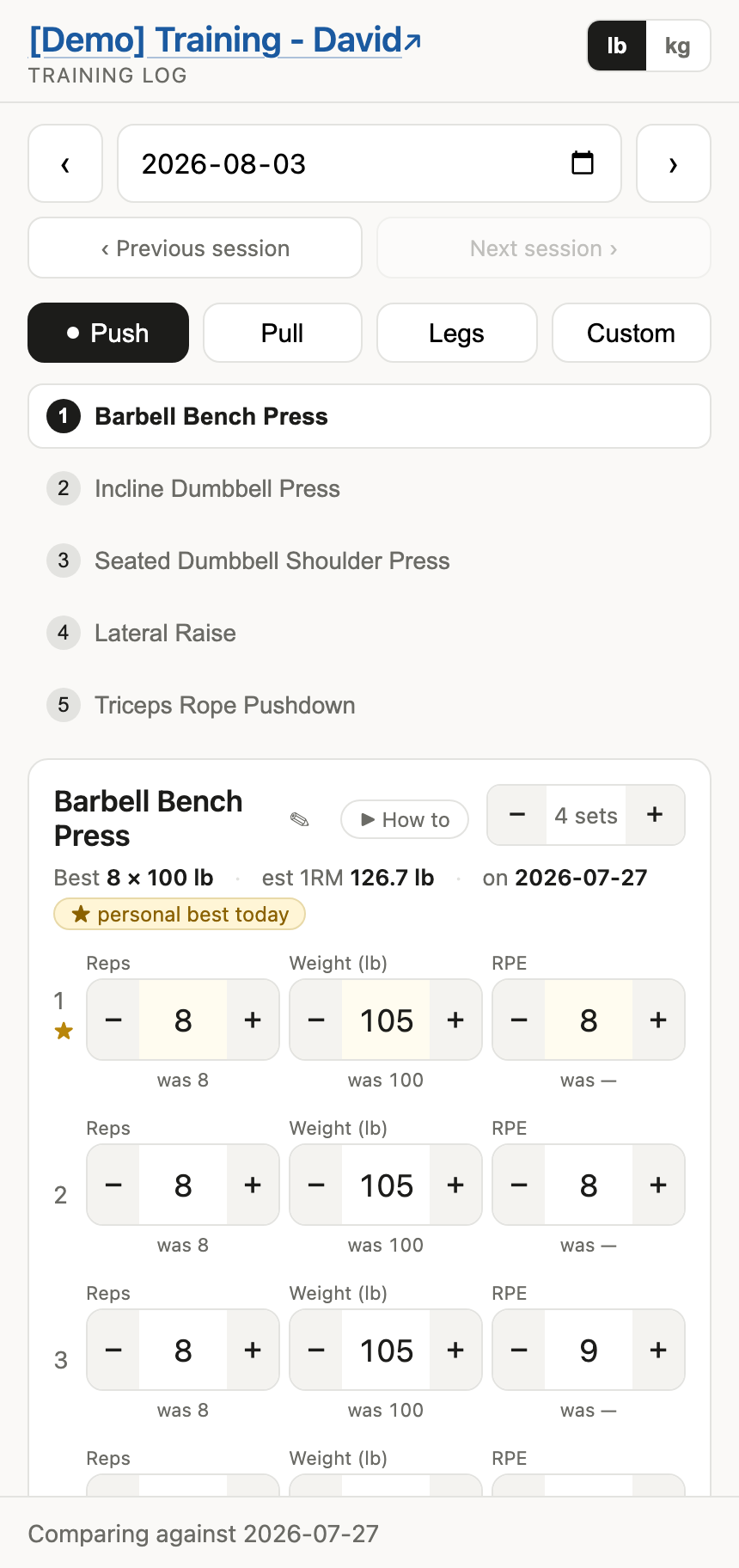
Top to bottom:
| Training — David | The spreadsheet’s name. Tap it to open the sheet itself. |
| ‹ date › | One calendar day at a time. |
| ‹ Previous session / Next session › | The nearest date with a session of this day type — or, with no day type picked, the nearest date with any session, which it then opens. Greyed out when there is none. |
| Push / Pull / Legs / Custom | Day type. A green dot means that day already has a session on the date shown. Tap the one you are on to drop back to the day list. |
| lb / kg | Which unit weights are shown and typed in. See pounds or kilograms. |
| Best 8 × 15 lb · est 1RM 19 | Records for that exercise, with a ★ personal best today tag when a set beats them. |
| was 8 · was 5 · was 7 | What you did for that same set the last time you did that exercise, under the field it belongs to. |
| last done 2026-08-05 | Only when that date is not the one the status bar names — see what “last time” means. |
| Comparing against 2026-08-09 | The status bar. It names a date only when every exercise on screen was last done that day; otherwise it says the comparisons come from different days, or that these exercises are new. After a save it reports the row and the values read back out of the spreadsheet. |
The heading and the status bar stay put as you scroll. Once you pick a day type, that row of buttons shrinks — it is navigation from then on, and the session needs the room.
If your phone’s date picker offers a Reset, it empties the field rather than restoring anything — the app takes that as today.
Opening the link shows Loading Web App… centred on the page until the spreadsheet answers. Nothing above it means anything until then: no name, no date, no day types.
The session dims only while a day is loading, or while a rename or a delete is in flight. Everything else happens on screen first and writes behind it: values, set counts, adding an exercise, pairing a superset.
A burst of presses collapses into a single write, sent once you stop for about half a second, so holding + costs one save rather than twenty.
Every link in the app opens in a new tab, on purpose. Navigating away mid-session would take any not-yet-saved changes with it.
Running a session
1. Pick the date and day
| Control | Moves |
|---|---|
| ‹ › beside the date | One calendar day, logged or not |
| ‹ Previous session / Next session › | To the nearest date with a session of this day type. With no day picked, to the last session of any type — the quickest way back to what you did last. |
Then tap a day type. Push / Pull / Legs are just what the starter template contains — see day types are yours. Custom is always offered.
2. Start it
If nothing is logged for that day and date, you choose how to begin:
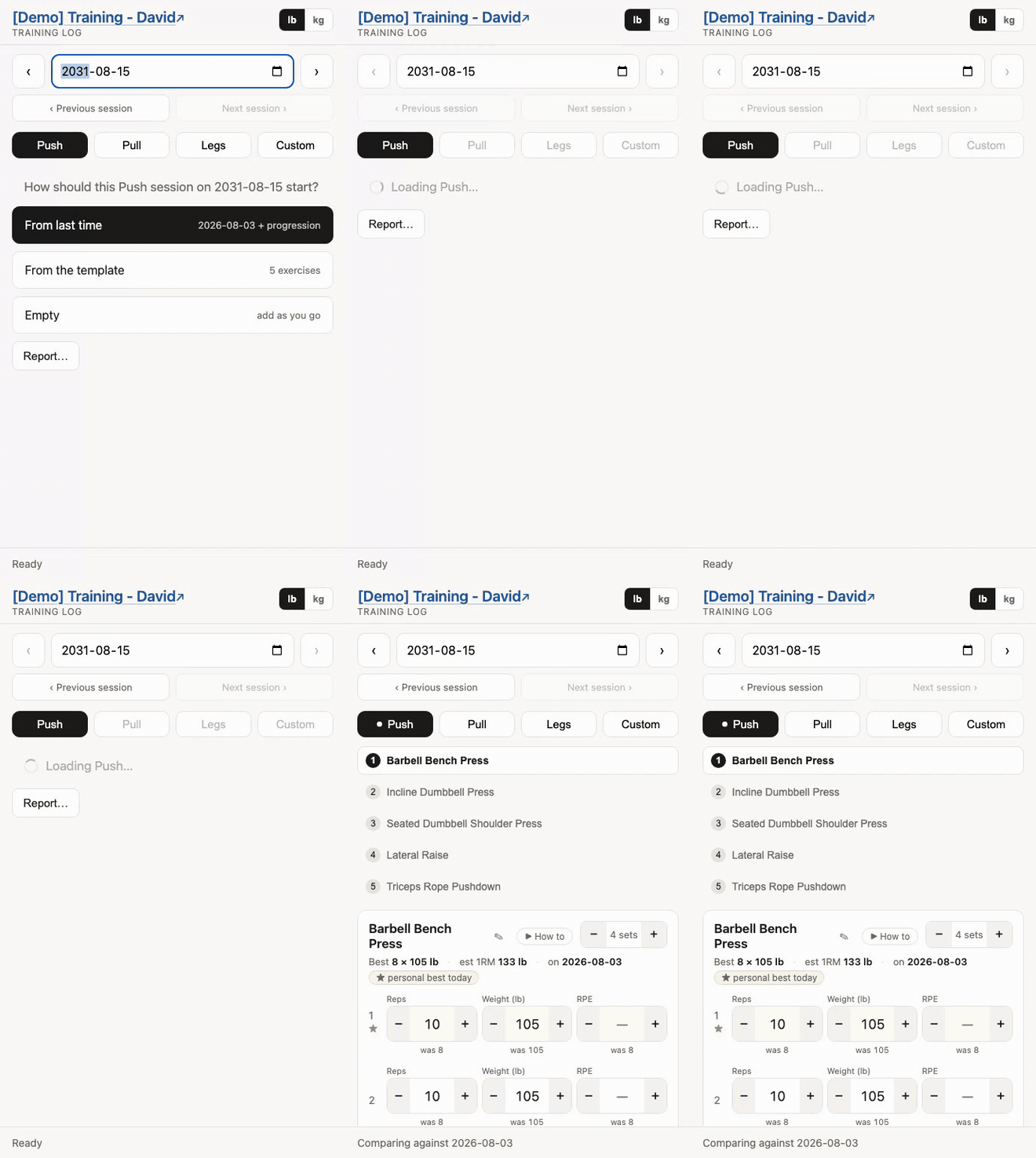
| Choice | What you get |
|---|---|
| From last time | The most recent session of that day type, with the progression rule applied per set. The normal week-to-week choice. |
| From the template | A fresh copy of the Templates tab for that day. Use it to reset after a layoff, or when last week was not representative. |
| Empty | Nothing. Add exercises as you go. |
Only possible choices appear. The first is the suggestion — From last time normally, Empty for Custom.
What happens when you choose
Starting a session writes to the sheet immediately — the proposed numbers are rows before you touch anything. Changing a value overwrites that row, so the sheet holds what actually happened, not what was proposed.
An empty session has no rows to save, so it does not survive a reload until you add the first exercise. Nothing is lost, because nothing had been entered.
Custom defaults to Empty rather than being restricted to it — if you did the same thing last Custom day, From last time is offered and works.
3. Train and adjust
| Field | Steps by | Range |
|---|---|---|
| Reps or Seconds | 1 / 5 | 0 and up |
Weight (lb or kg) | 2.5 | 0 and up |
| RPE | 0.5 | 1–10, or blank |
Use − and +, or tap the number and type. Changes save themselves about half a second later; there is no save button.
Under each field is what you did for that same set last time — was 10, was 20, was 8. A blank means there was no matching set.
What “last time” means
The last time you did that exercise, whenever that was and whatever day type it was under — not whatever happened in the previous session of this day type.
That distinction matters as soon as sessions stop being identical. Skip an exercise one week, do it on a Custom day instead, or add it halfway through a cycle, and the old rule had nothing to show you even with months of it in the log.
The status bar names a date only when every exercise on screen was last done that day. Otherwise it says the comparisons come from different days, or that these exercises are new — and the card names its own date:
   Bulgarian Split Squat                        [− 3 sets +]
   Best 12 × 30 lb  ·  est 1RM 42  ·  on 2026-08-11  ·  last done 2026-08-05
Personal records were already per exercise and are unchanged.
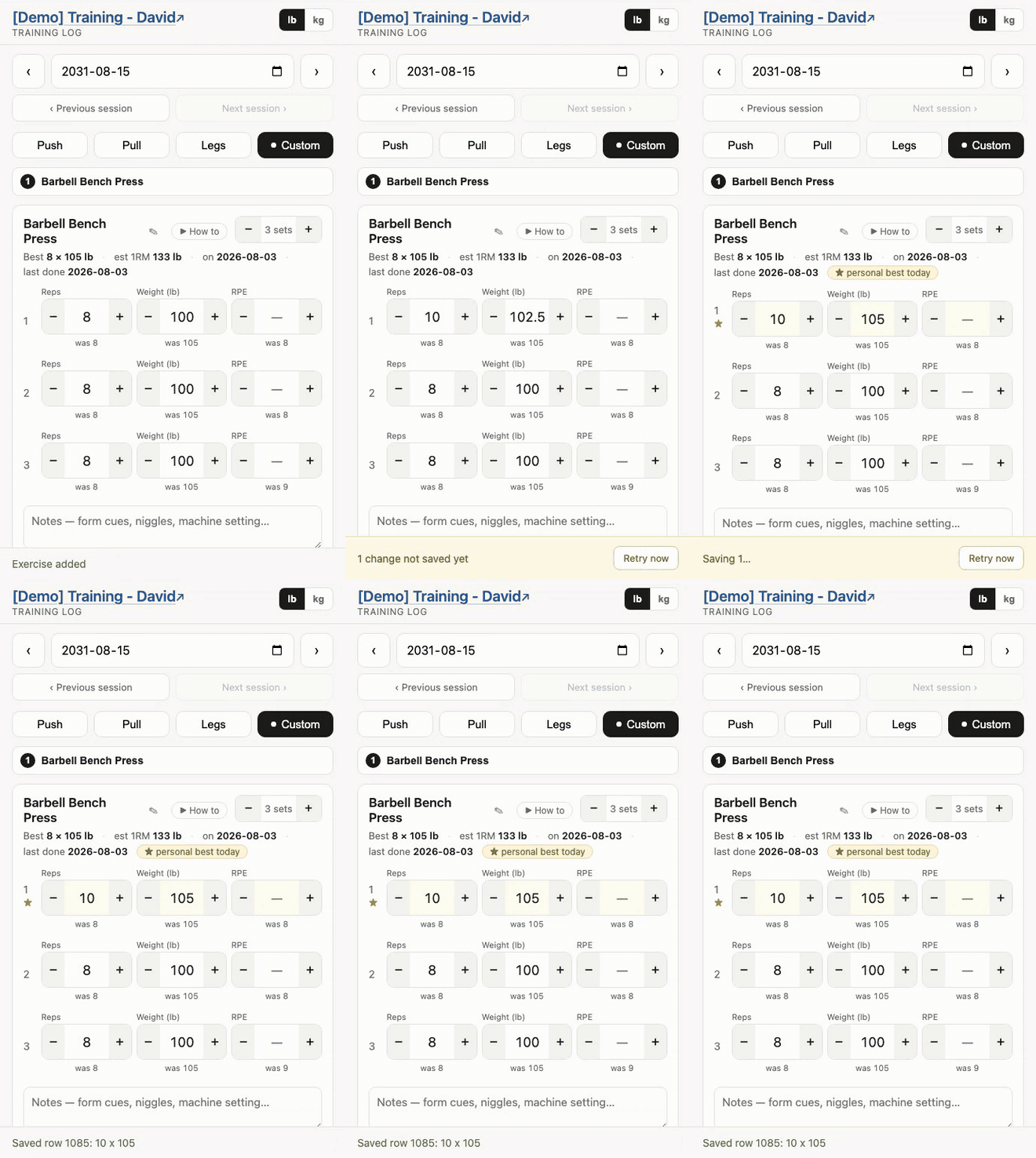
The bar reports the row and the values it read back out of the spreadsheet, so a save you can see is a save that landed.
4. Record RPE
How hard the set was, 1 to 10. This is what next week is calculated from.
| RPE | Meaning |
|---|---|
| 10 | Nothing left |
| 9 | One more rep in the tank |
| 8 | Two more |
| 7 | Three more |
| 6 or less | Could have kept going |
Clear the field to leave it blank; a blank counts as 8 next week, which is deliberately unexciting.
5. Watch for records
   Barbell Bench Press                          [− 4 sets +]
   Best 8 × 30 lb  ·  est 1RM 38  ·  on 2026-07-19
Beat it and a ★ personal best today tag joins the strip, and the one set that actually takes the record gets a star by its number and a faint tint.
Only that set is marked, not every set that clears the old number. A generated session steps up together, so most weeks all of them beat last time — and marking them all lit up the whole card and said nothing.
Both update as you tap. Configurable — see personal records.
When the wifi drops
Nothing is lost. Every tap is queued on the device and retried until the sheet confirms it. The bar turns amber:
│ 3 changes not saved yet — waiting for [ Retry now ]│
Carry on training. It retries on reconnect and when you return to the tab.
Do not close the tab while it is amber — the browser will warn you. Set counts, adding an exercise and Delete this session are refused until it clears, because they shuffle rows underneath changes that have not landed.
Changing the workout
Sets, and removing an exercise
The − n sets + counter adds or removes sets from the end. Adding copies the last set’s reps and weight.
Sets appear and disappear as you tap, and the write follows about a second later — three taps from three sets to none is one write, not three waits.
Going below one set removes the exercise from the session. It asks first, then deletes those rows from the sheet.
A different exercise
+ Add exercise, type the name — it autocompletes from the Exercises tab, which ships with 255 movements — then choose Reps or Seconds, Weighted or Bodyweight, and set the numbers.
   ┌────────────────────────────────────────────┐
   │ Plank                                    ▾ │
   ├──────────────────────┬─────────────────────┤
   │        Reps          │      Seconds        │  ← both pre-picked from
   ├──────────────────────┼─────────────────────┤     the Exercises tab,
   │      Weighted        │     Bodyweight      │     yours to override
   ├──────────────────────┴─────────────────────┤
   │  Sets 3   │  Seconds 30  │                 │  ← no weight box: a plank
   └────────────────────────────────────────────┘     carries none
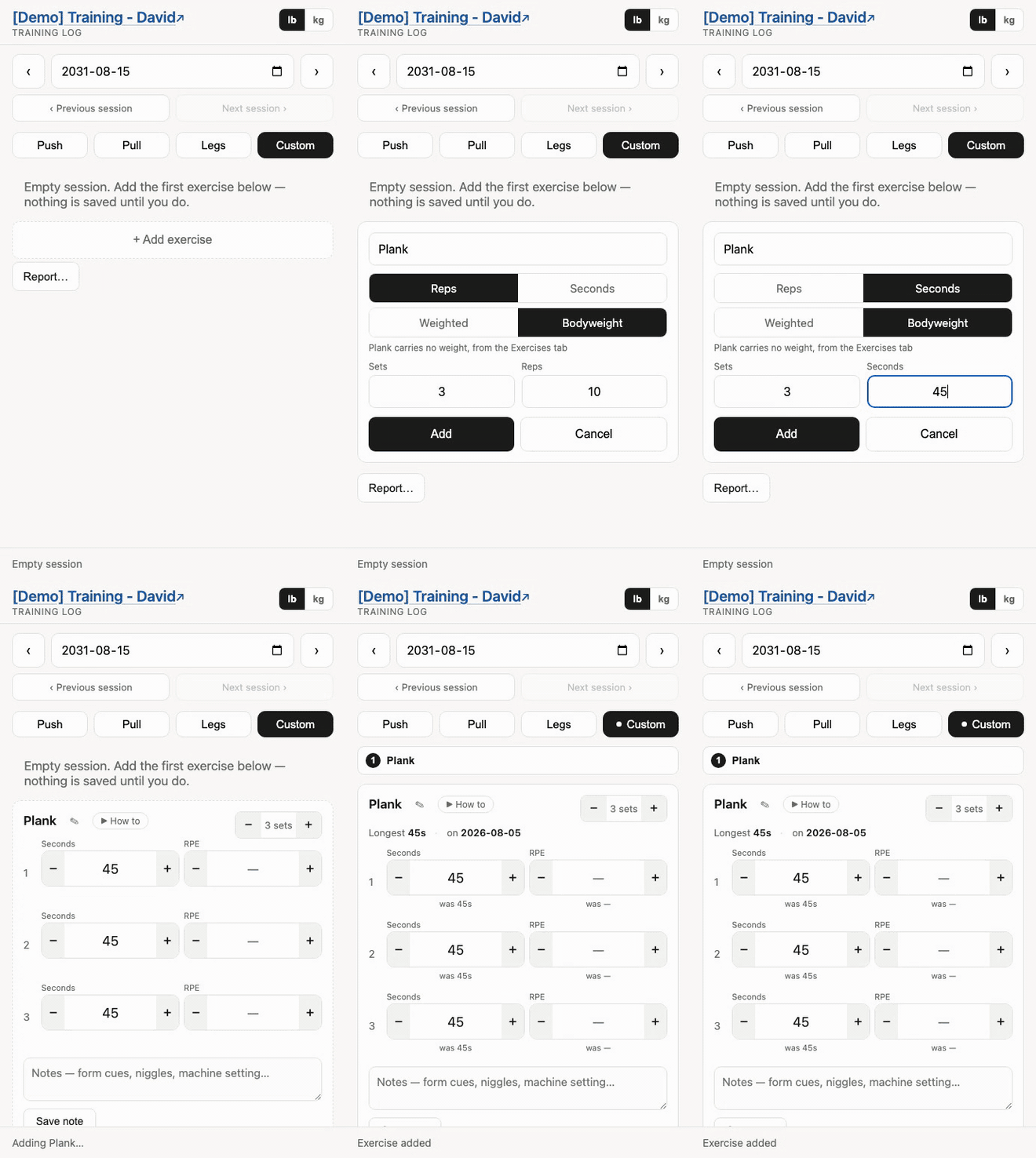
Pick a known exercise and the toggle follows the Exercises tab and says so. Change it and your choice wins for this add. The weight box disappears entirely for exercises that carry none — Plank above is timed and unloaded, so it offers Seconds and no weight.
The name is free text — it autocompletes, but nothing stops you typing something that is not on the list. The same exercise cannot be added to one session twice.
The card appears straight away, dashed until the sheet has it, and anything typed in that window is saved the moment the rows exist. Day, date and set counts wait until it lands — they move rows, and the add is about to be given some.
A name that is not on the list gets added to the Exercises tab, so it autocompletes from then on — carrying whatever you picked, so Seconds marks it time based and Bodyweight marks it no weight. For a known exercise, changing either toggle updates that same Exercises-tab setting everywhere.
A name is an exercise. Dead Bug (ss) is not Dead Bug — it gets its own row on the Exercises tab, its own flags, and its own records. If you have been marking supersets in the name, ✎ back to the real name now that supersets have a column of their own.
Supersets
Two exercises done back to back are one card, laid out in the order you actually perform them:
   ┌─ SUPERSET ─────────────────────────────── Unlink ─┐
   │ Dead Bug                          [− 3 sets +]    │
   │ Battle Ropes                      [− 3 sets +]    │
   │ ─────────────────────────────────────────────     │
   │ ROUND 1                                           │
   │   Dead Bug        Reps [− 12 +]   RPE [− — +]     │
   │   Battle Ropes    Secs [− 30 +]   RPE [− — +]     │
   │ ROUND 2                                           │
   │   Dead Bug        Reps [− 15 +]   RPE [− — +]     │
   │   Battle Ropes    Secs [− 35 +]   RPE [− — +]     │
   └───────────────────────────────────────────────────┘
Round by round rather than one exercise then the other, so a phone does not have to be scrolled between the two halves between reps.
To pair: the ⇄ Superset with … button at the bottom of a card links it with the exercise that follows it. Unlink at the top of a superset card takes it apart again.
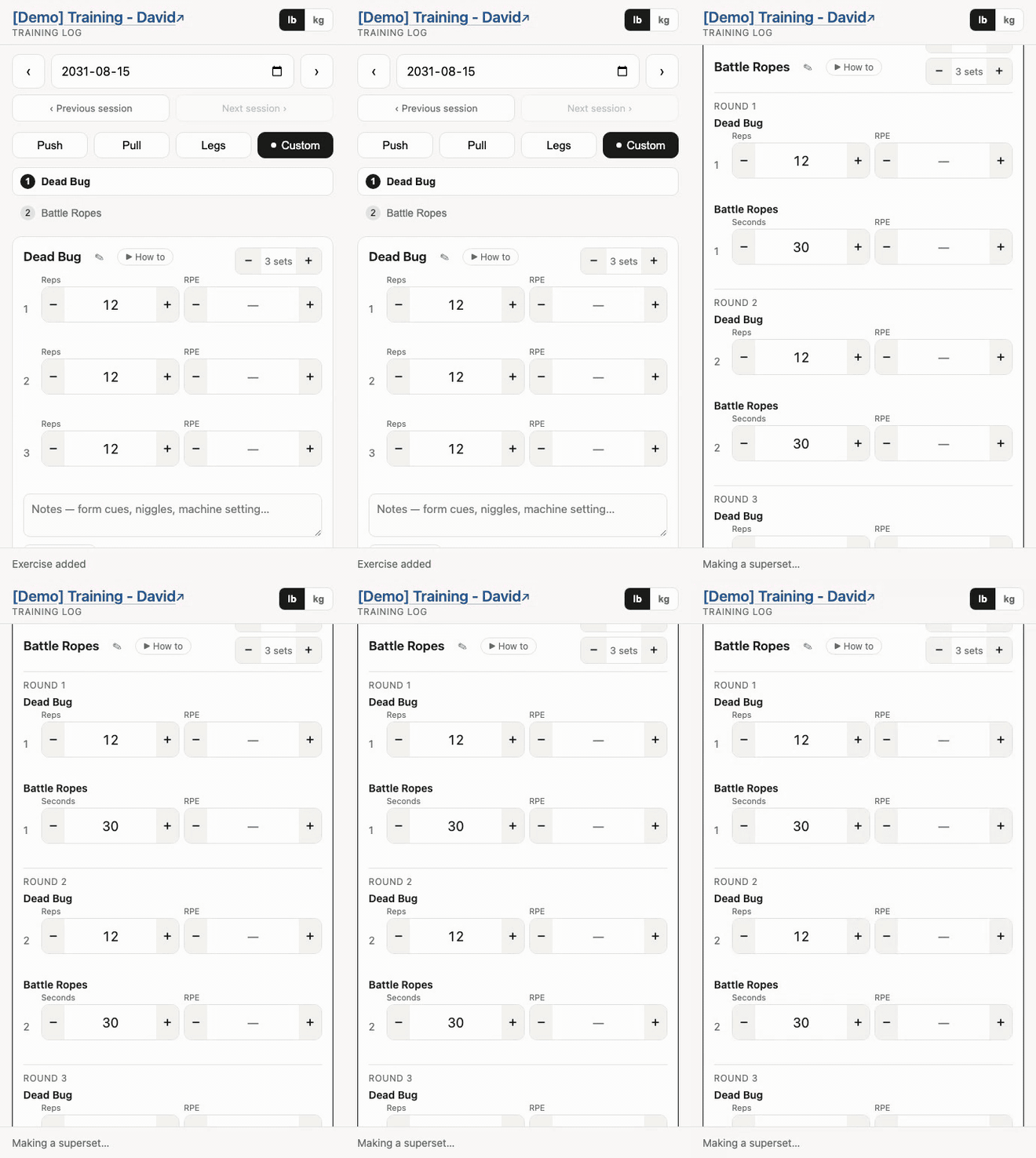
| Set counts | Independent. Three of one and two of the other is fine — a round only shows the exercises that still have a set that far in. |
| Records and progression | Per exercise, exactly as before. A superset is a layout, not a new kind of movement. |
| Notes | One per exercise, labelled, at the bottom of the card. |
| More than two | Allowed. Tri-sets and giant sets work the same way. |
Pairing is stored in column J of the Log as a letter shared by the rows involved, so it survives a reload, and From last time rebuilds next week’s session with the same supersets. Blank means a normal exercise.
You can also plan one: put the same letter in column G of the Templates tab against two exercises for the same day. The shipped template pairs Lateral Raise with Triceps Rope Pushdown on Push as a worked example.
Drop sets
Use Make drop set under a set. If another set follows, it links that next row; under the final set, it appends a new lighter row. Mark consecutive rows to make a chain. The same control becomes Unlink for an existing link.
Drop sets are stored as yes in column K of the Log. They remain part of the same exercise, count toward its records and volume, and carry into a session built From last time. They also work inside a superset.
Tablet and desktop layout
On a tablet or desktop, the whole session appears as a workout grid: exercises run down the left and each set’s weight, reps (or seconds) and RPE run across. The exercise column stays visible when a session has enough sets to scroll horizontally. Phones keep the one-exercise-at-a-time view.
Phone: one exercise at a time
A session is a stack of pages, one card each, with the whole session listed above it:
   ① Barbell Bench Press
   ② Dead Bug + Battle Ropes          SUPERSET
   ③ Seated Leg Curl

   ┌───────────────────────────────────────┐
   │ Barbell Bench Press    [− 4 sets +]   │
   │ …                                     │
   └───────────────────────────────────────┘

   [ ‹ Previous ]      2 of 3      [ Next › ]
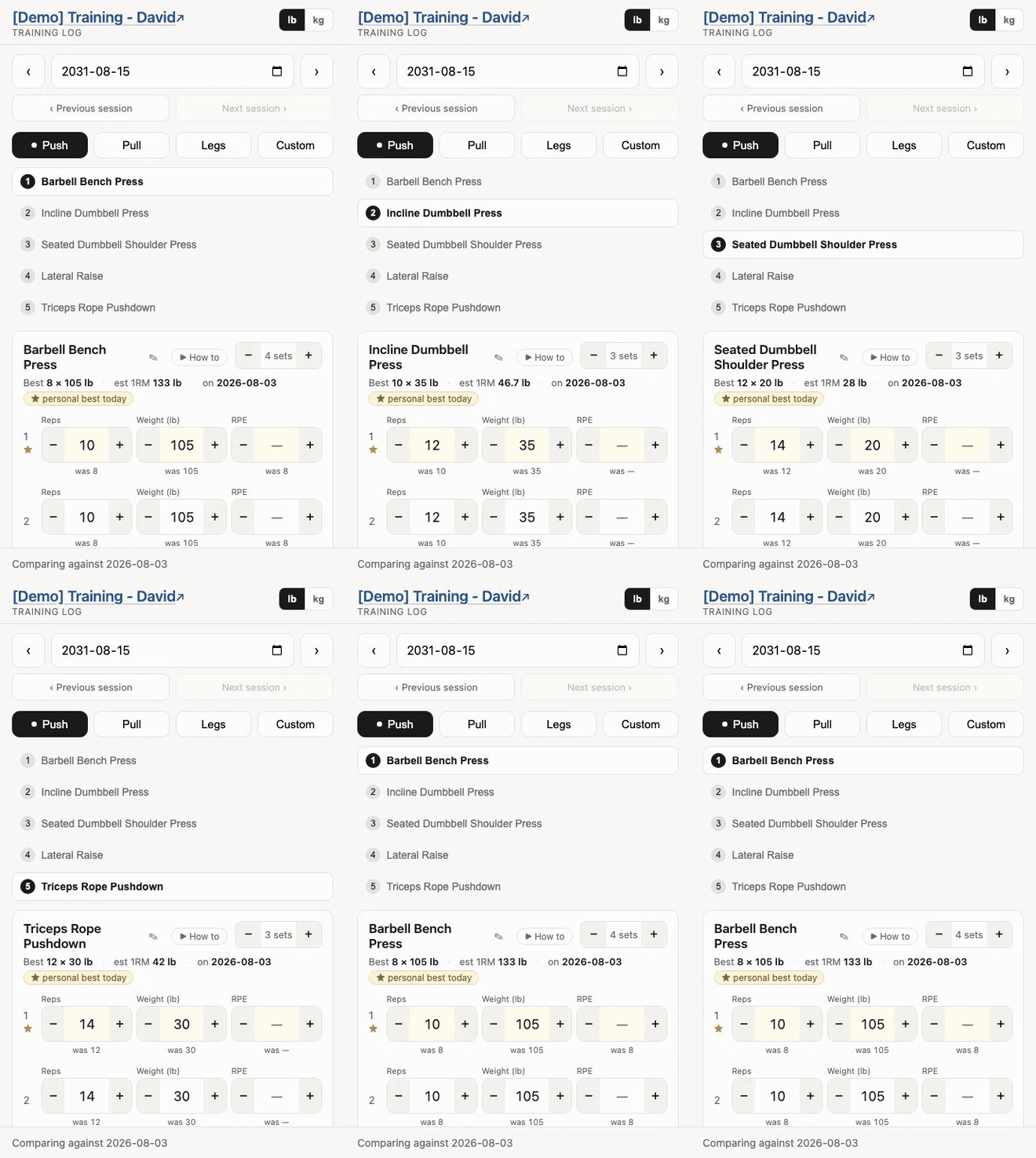
Three ways to move: swipe left or right, the ‹ Previous / Next › buttons under the card, or tap any line in the list to jump straight to it. The list is the overview — where you are, what is left, and which exercises are paired.
Nothing is thrown away when you move: every card stays rendered with its values and its pending saves intact, so switching is instant and a queued write is never interrupted by it.
Pounds or kilograms
The lb / kg switch beside the heading changes every weight on screen — the fields, the was lines, the records, the add form. Tap it when you walk up to a machine marked in the other unit; it takes effect immediately and mid-session is a normal time to use it.
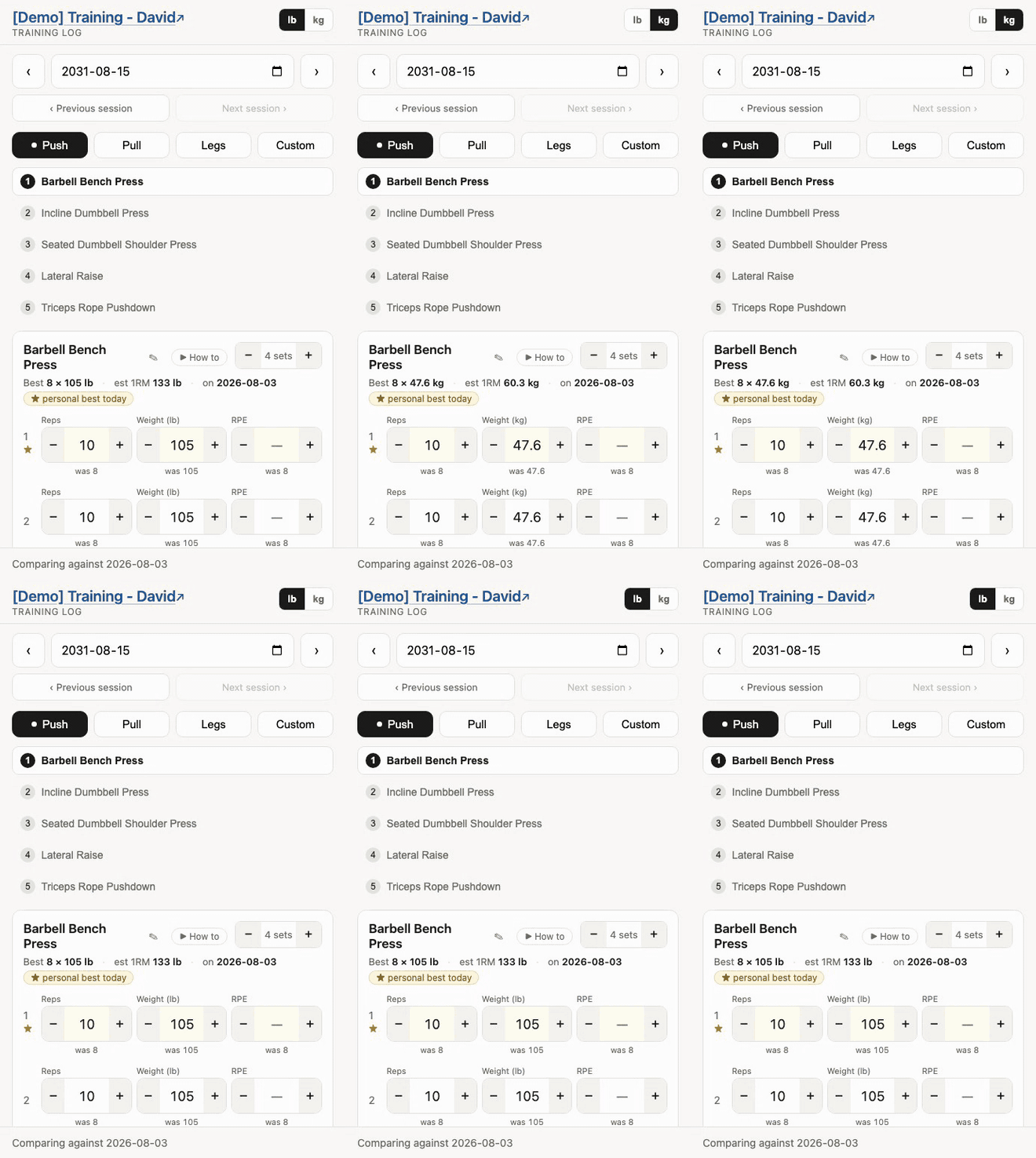
The sheet is always pounds. Column F stays Weight (LB), so records, progression and every comparison keep working on one unit. Kilograms are converted as you read and type, nothing more.
Typing 60 in kg | Stores 132.3 lb, reads back as 60 |
| + in kg | Steps 2.5 kg — clean numbers, not what 2.5 lb converts to |
| Switching unit | Changes nothing in the sheet and saves nothing |
The choice is remembered on that device, not in the log, because it belongs to the machine in front of you rather than to the person training. The admin’s tablet and a viewer’s phone can disagree.
Progression is worked out in pounds, so a kg user sees steps of 2.3 kg rather than a round 2.5. The generated number is a proposal you overwrite anyway.
Editing an exercise
The ✎ beside an exercise name opens a full-width editor across the top of the card. Change its name, switch Reps / Seconds, or switch Weighted / Bodyweight, then save — no trip to the spreadsheet.
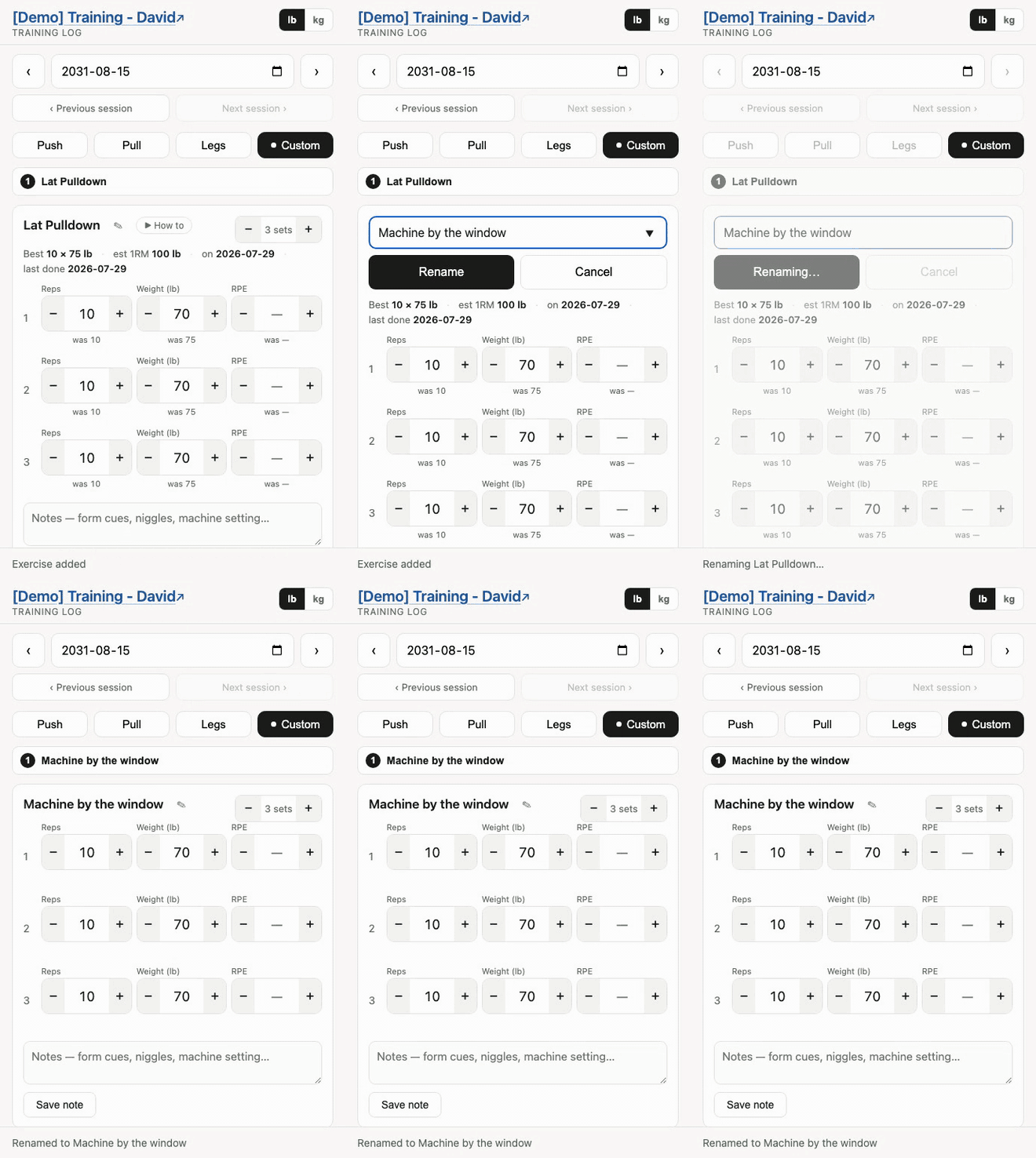
It renames this session only. The same exercise in earlier sessions keeps its old name, deliberately — rewriting history would change what progression and records were built from. The new name joins the Exercises tab so it autocompletes next time.
The two toggles are exercise-wide because they live on the Exercises tab. Changing Reps/Seconds reinterprets existing numbers without converting them. Changing to Bodyweight asks first, then sets this session’s weights to zero so hidden load cannot carry into next time.
A throwaway name like temp should be renamed before the next session of that day type. Progression matches on the name, so two different movements both logged as temp get progressed into each other.
Notes
The box at the bottom of each card is free text — form cues, a niggle, a machine setting. It belongs to the exercise, not one set, so it survives adding and removing sets.
It saves three ways: the Save note button, a second and a half after you stop typing, and when you tap out. Last week’s note appears underneath.
Starting over
Delete this session sits under the session it deletes, and removes every row for that day type and date. It is hidden when there is no session to delete. No undo in the app — but the spreadsheet has File → Version history.
Exercises measured in time
A plank is 30 seconds, not 30 reps. Exercises flagged as timed show Seconds where the others show Reps, and the field steps by 5:
      Seconds     RPE                  instead of
   1 [− 30 +]  [− 7 +]                 Reps · RPE
      was 25      was 8
Everything else follows: progression adds or removes seconds rather than reps, records read Longest hold instead of Most reps, and no estimated 1RM is offered — the number means nothing for a hold.
Column G of the Exercises tab, headed time based, controls it — yes for seconds, blank for reps. 23 rows ship marked: the planks and holds, wall sits, carries, sled work, and every cardio machine.
Timed and loaded are independent. A farmer carry is both — seconds in the first field, and a weight that still progresses. A plank is timed with no weight, and a bench press is neither.
The Log tab keeps one column for both, headed Reps / Secs. Which unit a row means is a property of the exercise, so changing that flag re-reads the history in the new unit.
Exercises with no weight
Push-ups, planks, pull-ups, the rower: nothing to load, so the weight field is hidden and the card shows reps and RPE only.
        Reps       RPE                 instead of
     1 [− 20 +]  [− 7 +]               Reps · Weight · RPE
        was 18     was 8
An easy set then earns reps rather than weight, so a push-up never becomes a 5 lb push-up. Records track most reps instead of heaviest.
The add form has a Weighted / Bodyweight switch beside the Reps / Seconds one. A known exercise pre-picks itself from the Exercises tab and says so; pick Bodyweight for a new one and the weight box goes, along with the weight column on its card from then on.
Column E of the Exercises tab, headed no weight, is what that writes — yes to hide the field, blank otherwise. 52 rows ship marked.
Doing weighted pull-ups or dips? Clear the yes on that row. Weighted Pull-Up and Weighted Chin-Up already ship unflagged.
Showing what the movement is
Two columns on the Exercises tab, both optional.
Column F, video — all 255 shipped exercises have one: a ▶ How to link beside the name that opens a YouTube search for that movement, in a new tab. Replace any of them with a specific video you trust.
An exercise you add by typing a new name gets a row with this column blank, so it has no ▶ How to until you paste one in. Same for the picture.
A search rather than one fixed video, because a search never rots, covers all 250-odd rows, and stays current. Picking the video for an exercise is a judgement worth making yourself.
Column D, image — paste a picture or GIF URL and that exercise gets a thumbnail; tap it, or the name, to see it full width. Blank by default, because an image URL has to be one you are allowed to use.
It has to be a direct link to the image file, public, not a link to a page containing one — see an exercise picture does not show for the Google Drive recipe.
Day types are yours
Nothing about Push / Pull / Legs is built in. The buttons are assembled on every load:
   Templates tab   +   Log tab            +   always
   (day column)        (Day column)           appended
   Push                everything ever        Custom
   Pull                logged
   Legs
        └──────────── duplicates removed ────────────┘
                            ▼
              [ Push ] [ Pull ] [ Legs ] [ Custom ]
Put whatever names you like in the day column of Templates — Upper / Lower, Full body, A / B, one day, five. A day type also appears the moment anything is logged against it.
Renaming and removing day types
Rename in the Log tab: select the column, Edit → Find and replace, replace the old name with the new. The old button disappears on the next reload.
Removing is the same in reverse — once no rows and no template lines mention it, the button stops appearing. Custom is the exception; it is always offered.
Each person’s day types live in their own spreadsheet, so two people tracked by the same trainer need not match.
How next week’s numbers are worked out
Each set is looked at on its own and adjusted by its own RPE:
  RPE of that set          becomes                    note written
  ─────────────────        ───────────────────        ────────────
  6.5 or less        →     +2 reps, +5 lb             "was easy"
  7 to 8.5           →     +2 reps, same weight       —
  9 to 9.5           →     same reps, same weight     "repeat"
  10                 →     −2 reps, −5% weight        "backed off"

  blank RPE          →     treated as 8
Weights round to the nearest 2.5 lb. The note lands in the Auto note column so you can see why a number moved.
These are a proposal. Override them freely — the app’s job is to save you doing the arithmetic for thirty sets, not to decide the training.
An exercise at 0 lb stays at 0 forever, because “+2 reps, same weight” never moves it. Type the real weight in once and the rule takes over. Templates seed weights at 0 on purpose.
Putting the exercises in order
The list above the card is the running order. Use the ↑ and ↓ buttons to move an exercise one place. Several quick taps are saved as one order change, and a superset moves as one thing.
The new order is written to the sheet, so it is the order the session opens in next time, and the order next week’s session is built in. Tapping the exercise name still jumps to it.
Like adding an exercise or changing a set count, this shuffles rows about, so it waits until anything you have typed has finished saving.
A note for the whole session
Under the exercises there is a Session note — how the session went, what to change next time, which is the thing a paper log keeps at the bottom of the page. It saves the same three ways as an exercise note: the Save note button, a pause in typing, or tapping away.
It is stored on its own Sessions tab — date, day, note — rather than on the Log, which holds one row per set. The tab appears the first time you write one.
Housekeeping
A report you can send
Report… next to Delete this session. Say how far back — a number and days, weeks, months or years — or give two dates for an exact range. The dates win when either is filled, and leaving the number blank reports everything logged.
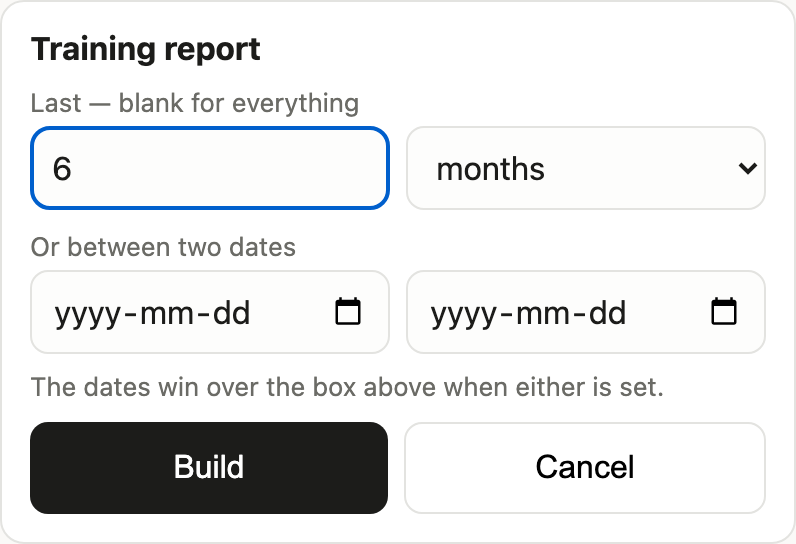
Then the report is drawn in the app:
-
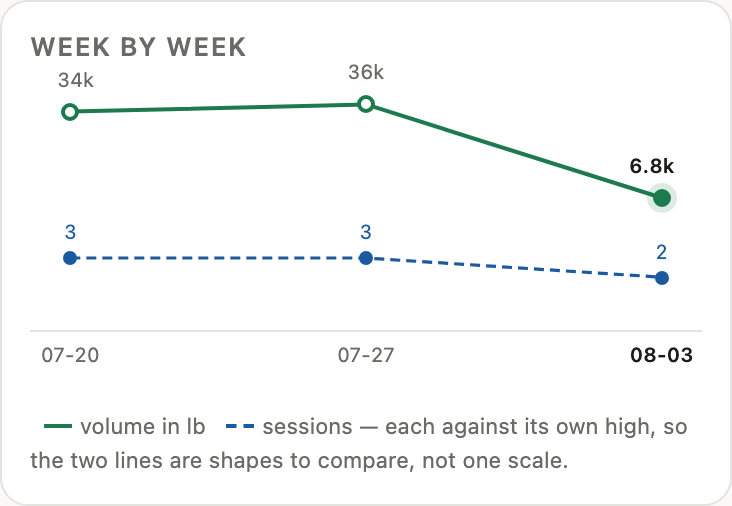
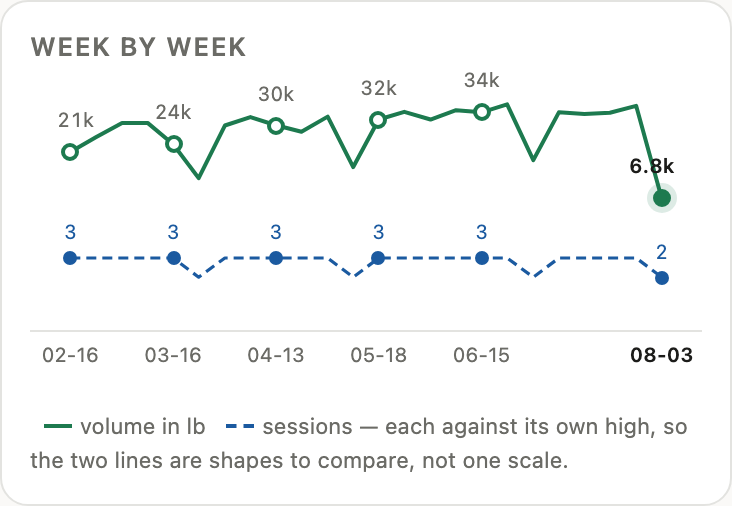
two lines across the weeks — volume in lb, and how many sessions, each drawn against its own high so a hard week and a frequent week can be told apart. Over a long period only some weeks are labelled; every one is plotted. Past half a year it switches to a point per month, since fifty weekly points are texture rather than a trend
Ask for longer and the same chart is drawn by month instead:
- totals and averages as tiles — sets per session, sets per week, volume — each with the same numbers over your whole log underneath, so four weeks is read against everything rather than on its own
- a card per day type, with an icon, its own totals, and one row per exercise: the period’s range, your all-time range, and a trend pill. The twelve most-trained are listed and the rest counted on a line beneath
- ★ on a period holding a best ever set
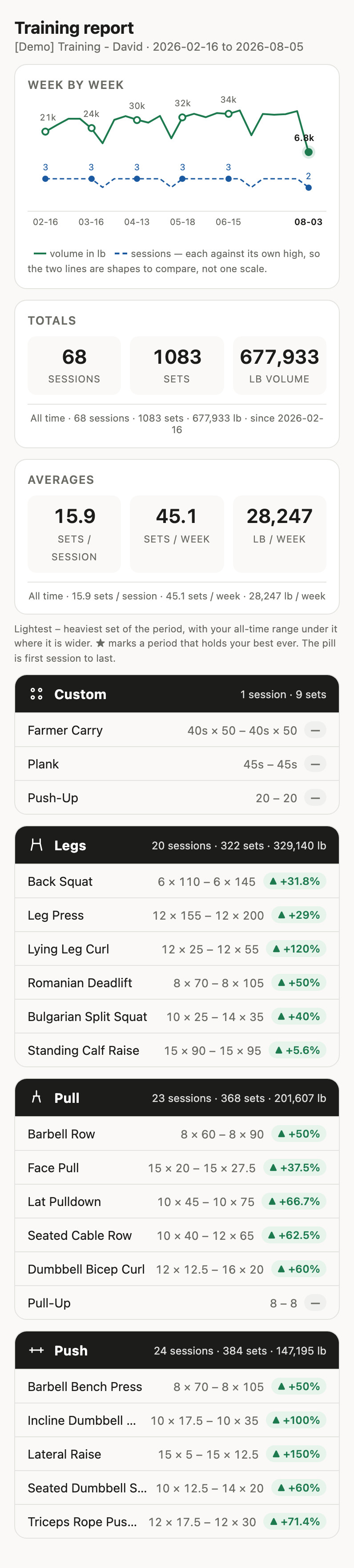
It opens over the session; Close, the backdrop, or Escape dismiss it.
Save as PDF prints it — on a phone that is Share → Print → Save as PDF. What you see is what prints, colours included: browsers drop background colours by default, which would take the bars, the trend chips and the day headers with them.
Your browser’s own print settings add the date, the page URL and page numbers along the top and bottom. Turn off Headers and footers in the print dialog if you would rather they were not there.
Each exercise row carries two ranges. The first is the lightest and heaviest set of the period — the worst and the best, not the first and the last, so a bad week in the middle shows up. Under it, where it is wider, is your all-time range over the whole log, which is what stops a good month reading as a personal best.
 ★ Barbell Bench Press        8 x 95 – 8 x 10⁵   ▲ +5%
                          all 8 x 65 – 8 x 10⁵
   Pull-Up                          8 – 8         —
- The pill compares the last session of the period with the first — or, when the period holds only one, with the last time before it. By weight when the weight moved, by reps when it did not: more reps at the same load is progress, and reading that as 0% was a bug.
- ★ marks a period holding a best ever set. It needs history to beat, so a first-ever session does not star itself.
- The all-time line is left off when it matches the period — with no weeks asked for, the period is the whole log, so it never appears.
Volume is reps × weight, so bodyweight work counts as sets but adds no volume, and a timed exercise contributes none either — seconds × pounds is not a number worth totalling. All three still count as sessions.
Archiving old sessions
Training → Archive old sessions… lifts a closed period out into its own spreadsheet and removes it from this one.
Give it a cut-off date. Everything up to and including that date is copied to a new file named after the range — Training — David_2024-01-01_2024-12-31 — and then deleted here. It tells you how many rows and sessions before doing anything.
Records are worked out from what is left, so bests set in the archived period stop showing in the app. The archive keeps its own Records tab, so they are not lost — just no longer live.
History costs speed
Every page load reads the whole Log. That is what makes the app simple — there is no index, no cache and nothing to get out of step with the sheet — and it is also why a long log is a slow one.
Measured on the demo log, three cold loads each:
| Log size | Opening the app | Loading a session | Building the report |
|---|---|---|---|
| ~230 rows (one month) | ~7s | ~3s | ~4s |
| ~1,100 rows (six months) | ~10s | ~13s | ~5s |
| ~1,800 rows (ten months) | ~15s | ~19s | ~10s |
Loading a session is the number that matters, because that is the one you wait for standing at a machine with your rest timer running.
So: keep the recent months in the sheet and put the rest somewhere else. Six months is a reasonable place to start — enough that the report has half a year of shape to draw and every exercise has history behind it, short enough that the app stays quick. Archiving ten months back to six took the demo from 19s to 13s on a session, and halved the report.
Nothing is lost by archiving. The rows move to another spreadsheet in your Drive, which opens like any other and holds its own copy of the records from that period.
Archiving on a schedule
Training → Archive automatically… turns the same thing into a weekly job. Give it a number of months to keep; anything older moves to its own spreadsheet every Monday morning, and 0 switches it off again.
It is off until you ask for it, and the minimum is three months — the app builds each session from recent history, so archiving that history away would take “last time” with it.
Why bother: every page load reads the whole log, so a year of training is a slower app than a month of it. Archiving is what keeps it quick.
The job writes the archive and reads it back before deleting anything, and leaves a note in Settings under archive_last_run saying what it moved and when. Nothing in the app reads that note; it is there so you can see the job ran without going hunting in Drive.
The spreadsheet underneath
The Log tab is the actual record; the app is a convenient front door. Sort, filter, chart, export or edit it freely — the app reads it fresh each time.
| Column | Holds |
|---|---|
| A–D | Date, Day type, Exercise, Set number |
| E–G | Reps, Weight (LB), RPE |
| H | Auto note — the app’s (from template, was easy, repeat, backed off) |
| I | Notes — yours |
| J | Group — a letter shared by the exercises in a superset, blank otherwise |
| K | Drop set — yes when this set follows the preceding set immediately, blank otherwise |
Keep the column order. The code reads columns by position, not by heading.