Viewer guide
Someone sent you a view-only link — your trainer, or whoever keeps the log. It shows the training history. There is nothing to install and no account to make.
Opening it
Tap the link. You will see the current session for whichever day you pick — Push, Pull or Legs — with every set, the weight, the reps and the RPE that were recorded.
A blue banner across the top says READ ONLY — you can look, not change, and the whole page is outlined in the same blue. That is normal. This link is for looking things up; the numbers are entered through the admin link, which someone else holds.
Nothing on the page can be typed into: values are plain boxes, notes are plain text, and there are no buttons that would change anything.
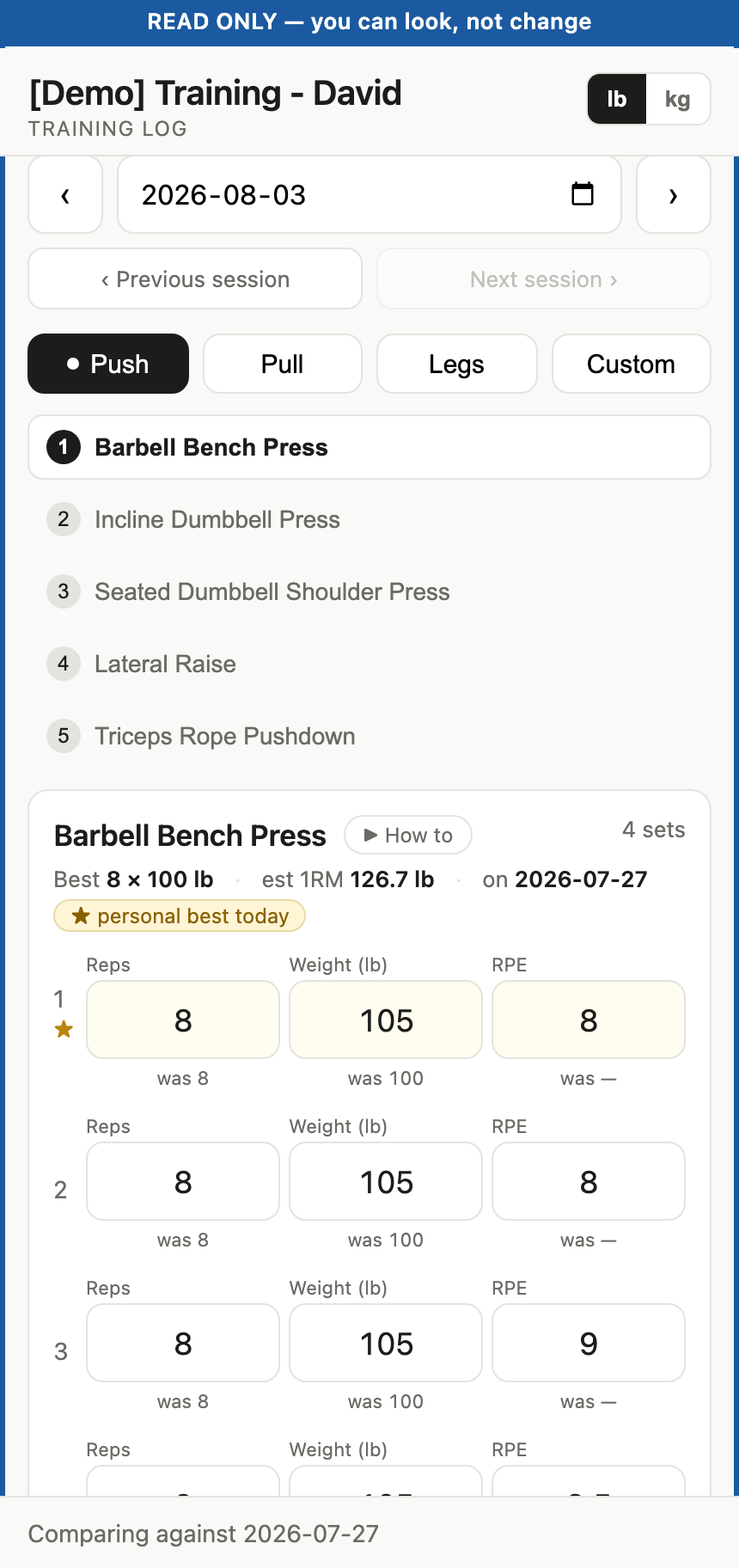
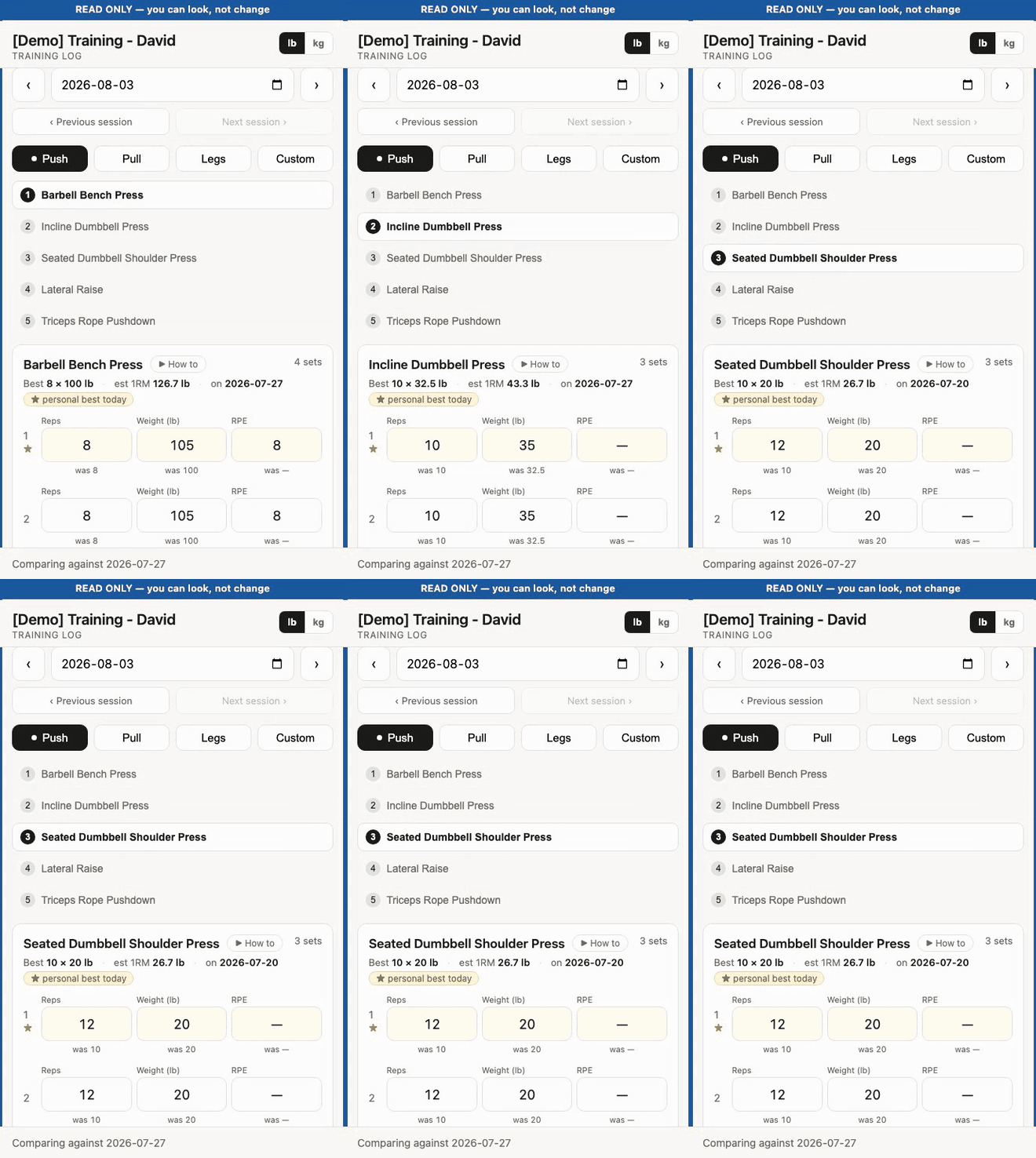
One exercise is shown at a time, with the whole session listed above it. Move with ‹ Previous / Next › under the card, by swiping, or by tapping any line in the list:
To keep it handy, open the link and use Share → Add to Home Screen on iPhone or iPad, or the browser menu → Add to Home screen on Android. It then opens like an app.
Finding an old session
- Tap the day type along the top — Push, Pull, Legs, or whatever names your log uses. A green dot means that day has a session on the date shown.
- ‹ Previous session jumps to the nearest earlier session; Next session › goes forward again. With no day type picked they walk every session in the log, whatever type. The ‹ › either side of the date move one calendar day at a time.
Only day types that have sessions appear, so every button leads somewhere. If you see “Nothing has been logged yet”, nothing has been recorded in this log at all so far.
If a date has nothing logged you will see No Push session logged on… — that just means you did not train that day.
Reading a card
One card per exercise, one numbered row per set.
- Reps, or Seconds for a hold or a carry.
- Weight — the lb / kg switch by the heading changes which unit you read; it is your choice and changes nothing in the log. Missing entirely for exercises with no weight, like push-ups or the rower.
- RPE — how hard the set felt, out of 10. A dash means it was not recorded.
- was 8 under a field — what you did for that same set last time, so you can see the progression. Blank on a first session.
- Best 8 × 15 lb · est 1RM 19 — the best ever recorded for that exercise.
Most exercise names carry a ▶ How to link, which opens a video search for that movement in a new tab; one typed in by hand may not. If a picture has been added, the name has a thumbnail too — tap it to see it full width.
Any note left against an exercise appears underneath it. A superset — two exercises done back to back — is one card, listed round by round.
What RPE means
RPE is how hard a set felt, on a scale of 1 to 10:
| RPE | You could have done… |
|---|---|
| 10 | nothing more |
| 9 | one more rep |
| 8 | two more reps |
| 7 | three more reps |
| 6 or less | plenty more |
It matters because next week’s weights are worked out from it. A set that felt like a 6 gets more weight next time; a set at 10 gets backed off. Being honest about it is the whole mechanism.
A few practical things
- Your link is personal. It shows your training history to anyone who opens it, so treat it like any other private link and do not post it publicly.
- It needs a connection. Gym wifi permitting, the page loads live from the spreadsheet each time. There is no offline copy.
- You cannot break anything. The link genuinely cannot save changes, even if you try.
- The report is yours too. Report… under the session summarises any period — volume and sessions over time, each exercise’s range against your all-time range — and Save as PDF prints it. It reads the same sessions this link already shows you and saves nothing to anyone’s Drive.
- Something looks wrong? Tell whoever holds the admin link — they can fix it in a couple of taps.